Marley Health - Nursing Dialog
Introduced in Version 17 (currently develop)
The Nursing Dialog is a single dialog for everything a nurse records at the bedside — vitals, intake and output, medication, consumables, notes, handover and the care plan. It opens from the document you are already working in and keeps the patient's recent history beside you, so nothing has to be closed to look something up.
1. How to Open the Nursing Dialog
- Open an Inpatient Record, Emergency Record, Patient Encounter, Clinical Procedure or Therapy Session.
- Click Nursing Dialog in the toolbar.
- Confirm the patient in the banner at the top of the dialog.
- Select what you are recording from the menu on the left.
- Fill in the fields and save.
Whatever you record is linked back to the document you opened it from, so the same entries appear on that document and in Patient History.
Inpatient Record and Emergency Record also carry a Nursing tab that shows the same summary without opening the dialog. The tab is read-only; record from the dialog.
2. Features
2.1 Patient Banner
The banner identifies who you are recording against: patient and doctor on the first line, then age, gender, bed, admission status, blood group and any allergies, shown in red.
2.2 Scan or Search
The box on the right of the banner accepts a wristband scan, a patient name, ID, UID or mobile number, or a record number — Inpatient Record, Emergency Record, Patient Encounter, Clinical Procedure, Therapy Session or Patient Appointment.
Opened from an Inpatient Record, the search only offers patients currently on a ward.

Scanning a record number switches to that patient and links what you record to that document. Scanning a wristband switches the patient only, so entries are saved against the patient rather than against the admission you had open.
2.3 Vitals and Pain Score
Fields are built from the Observation Templates under the Vital Signs category, so adding a template adds a field. Blood pressure is a single field with systolic and diastolic side by side. Pain is recorded on a 0–10 scale banded Mild (0–3), Moderate (4–6) and Severe (7–10).
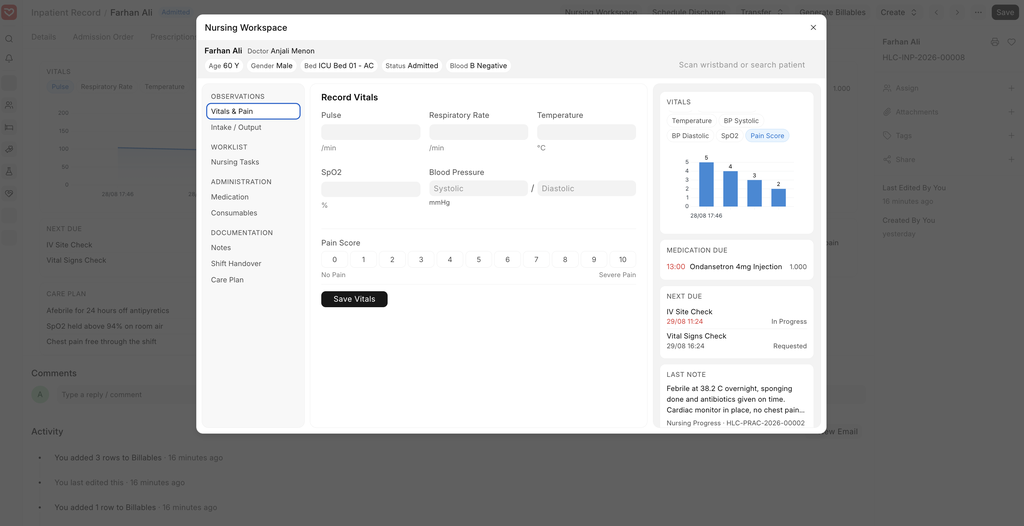
Each reading is saved as its own Observation.
2.4 Intake and Output
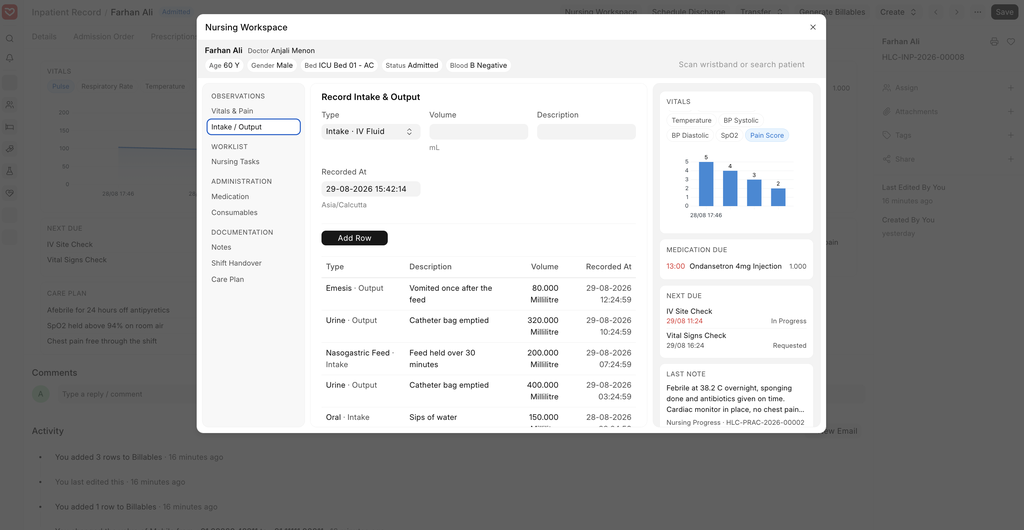
Select a type, volume and time, then click Add Row. Each row is saved as it is added. The totals below show intake, output and balance for the last 24 hours.
2.5 Nursing Tasks
The patient's worklist. A task moves from Add to Worklist to Start to Complete, and can be put On Hold or resumed. Starting a task stamps its start time; completing it stamps the end time and duration.
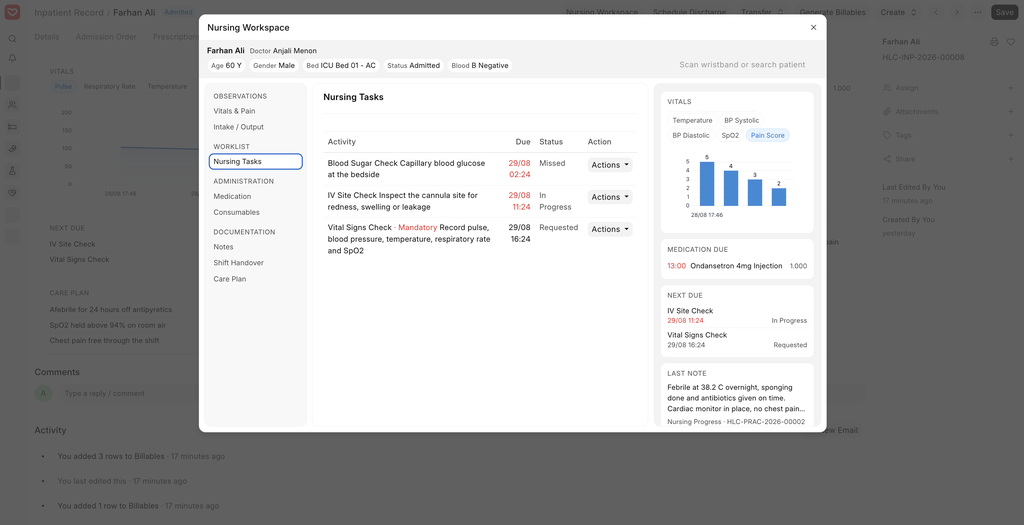
A task left more than 12 hours past its start time is marked Missed, and stays actionable so a late task can still be recorded. Completed tasks drop off the list.
2.6 Medication Administration
Doses come from the Inpatient Medication Order, which builds its schedule from the encounter's Medication Requests.
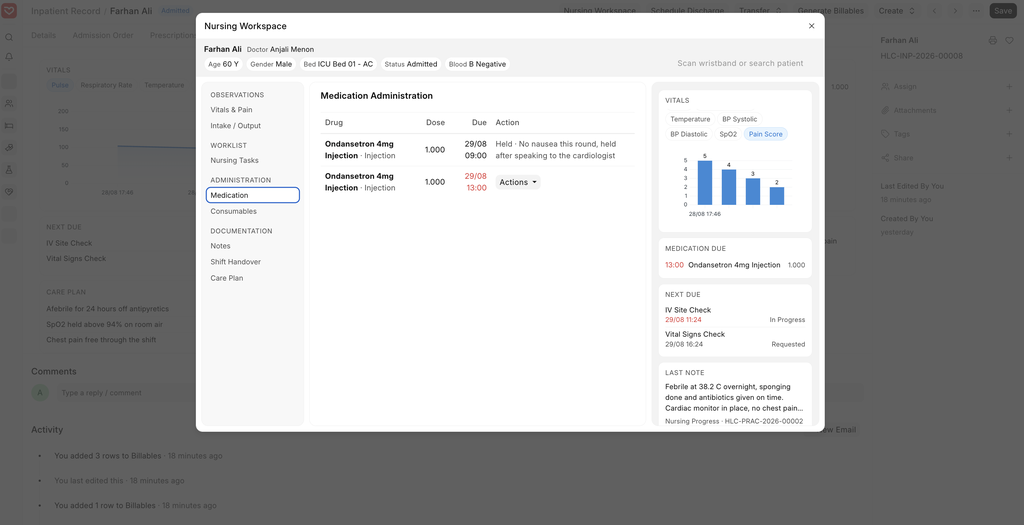
A dose is only offered once pharmacy has issued the stock for it through an Inpatient Medication Entry. A drug that has not reached the ward cannot be given.
Actions records the outcome as Given, Held, Refused or Not Available. The last three ask for a reason. Given doses drop off the round; held and refused stay visible for the next nurse.
A dose still waiting 12 hours after its scheduled time is marked Missed and stays visible for a day. It can still be marked Given, and both the scheduled and administered times are kept.
2.7 Consumables
Enter the item, quantity and batch, then click Add Item. The stock is issued from the ward store and added to the patient's billables in one step — an item becomes chargeable only once its stock entry exists.
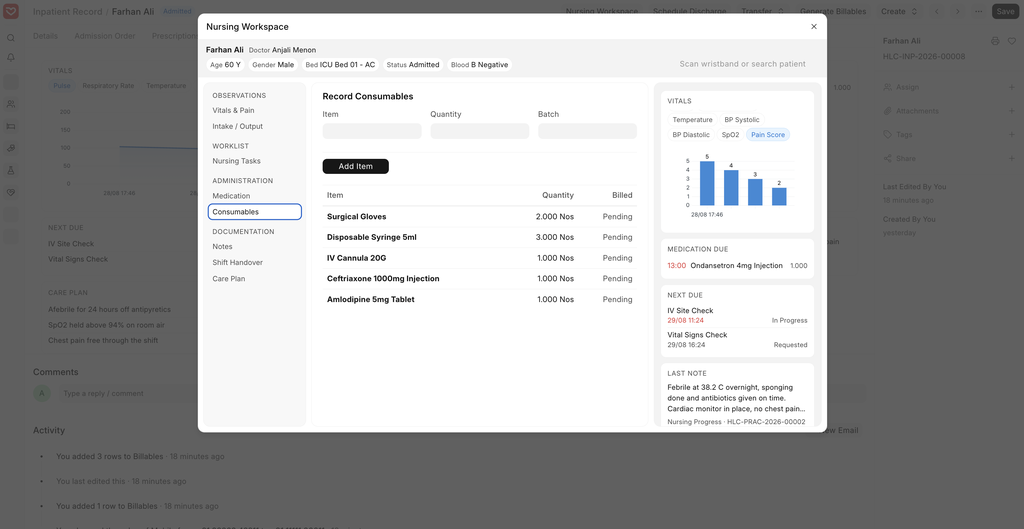
The batch list is limited to batches of that item that are on the ward and not expired. Consumables require an admission, as they bill through the Inpatient Record.
2.8 Notes
Select a type and the form changes shape. F-DAR gives four parts — Focus, Data, Action and Response. Every other type is written as free text.
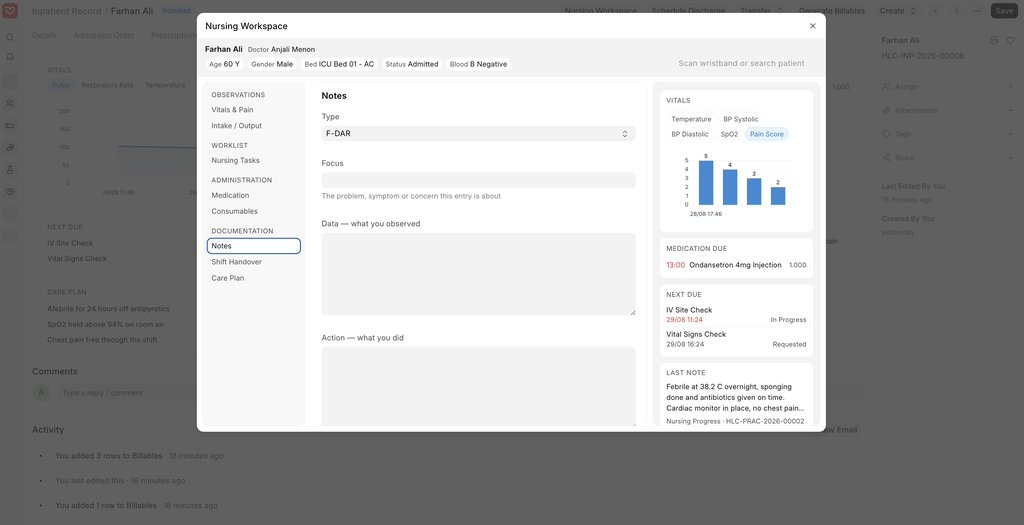
Types are records rather than a fixed list. Add your own under Clinical Note Type, tick Disabled to stop offering one without affecting notes already written, or tick Focus, Data, Action, Response to give a type the F-DAR form.
2.9 Shift Handover
If a handover is waiting for you, the pane shows it with Accept Handover. Accepting records that you took the patient over, and only then can you hand on. If one is waiting for someone else, the pane says so — a patient has one live handover at a time.
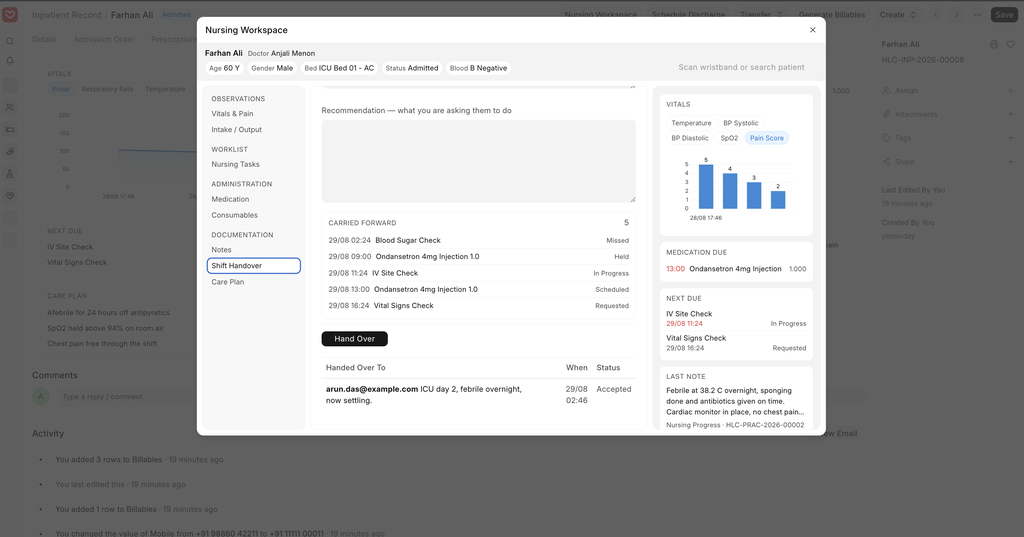
Otherwise you get the form: who you are handing to, the shift, and SBAR — Situation, Background, Assessment and Recommendation. Only the recipient and the situation are required.
Carried Forward, above the button, lists the open tasks and due doses the next nurse inherits. You cannot hand over to yourself.
2.10 Care Plan
Goals are set by the nurse when they first take the patient over. Each carries a target date and a status — In Progress, Met or Not Met — changed from Actions.
Active Orders below are the Service Requests and Medication Requests that are not yet finished. They are shown as they stand and never copied into the plan, so they cannot drift from what was ordered.
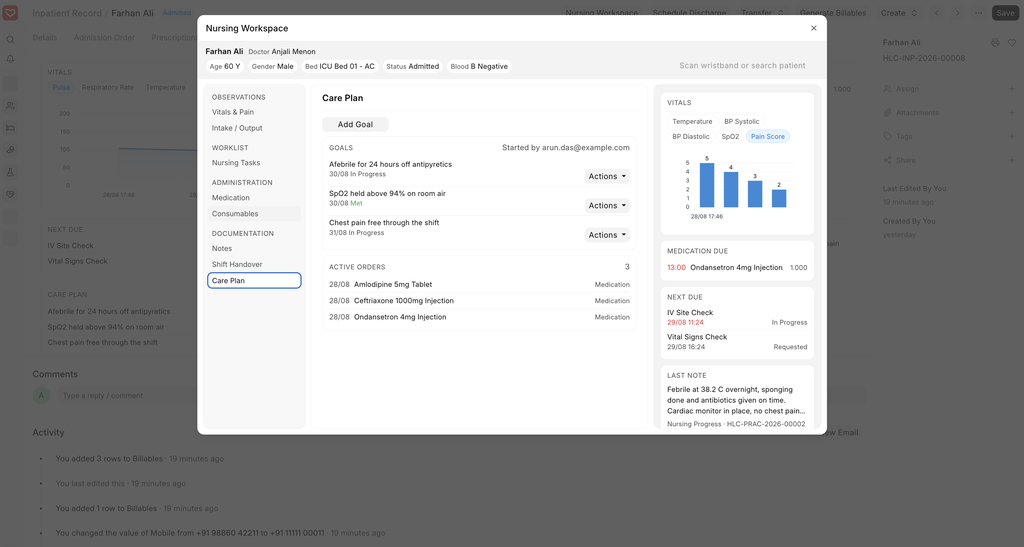
One care plan is live per admission.
2.11 Patient Summary
The panel on the right of the dialog, and the Nursing tab, show:
| Card | Shows |
|---|---|
| Vitals | one vital at a time, last ten readings |
| Medication Due | doses still to give, with missed ones counted |
| Next Due | open nursing tasks |
| Last Note | the most recent note, F-DAR entries included |
| Care Plan | goals with a met/total count |
The summary refreshes as you record and follows the patient when you scan or search.
3. Actions
| Key | Action |
|---|---|
| Tab | move from the scan box to the menu, then into the form |
| Arrow keys | move between the items on the menu |
| Home / End | first / last item on the menu |
After saving, focus returns to the menu so you can move on without the mouse.
The dialog does not close on a stray click or on Esc, so a half-entered observation is not lost. Use the close button in the header.
4. Settings
Healthcare Settings > Orders > Medication Administration
| Setting | Description |
|---|---|
| Automatically Schedule Medication Doses | Off by default. Turn on for doses to appear on the round. |
| Schedule Dose Before (Minutes) | A dose due at 14:00 with 30 minutes here appears at 13:30. |
| Manage Inpatient Medication Stock at the Bed | Transfer medication to the warehouse of the bed the patient occupies, and issue it when a dose is administered. A warehouse is created for every inpatient bed that does not have one |
5. What Gets Recorded
| Entry | Document created |
|---|---|
| Vitals and pain | Observation, category Vital Signs |
| Intake and output | Intake Output Entry |
| Medication | Medication Administration |
| Consumables | Stock Entry (Material Issue) and Inpatient Record Item |
| Notes | Clinical Note |
| Handover | Shift Handover |
| Goals | Nursing Care Plan with Care Goals |
| Task updates | Nursing Task |