Marley Health - Emergency Department
Introduced in Version 16
Emergency Record
Marley Healthcare lets you run your Emergency Department from a single document. The Emergency Record tracks a patient from arrival through triage, bed allocation, treatment and orders, all the way to disposition — while reusing the clinical and billing tools you already use elsewhere in Marley.
Prerequisites
Before you create an Emergency Record, make sure the following are set up:
- Triage Level — the acuity scale. Marley bootstrps three levels (Emergency, Urgent, Non-urgent), each with a colour and priority. You can edit these or add your own under Triage Level.
- Healthcare Service Unit — the ED beds/cubicles. Create them as Service Units of a Service Unit Type that has Inpatient Occupancy enabled.
- Healthcare Practitioner — the attending/triage practitioner.
- Observation Template — vital-sign templates of category Vital Signs.
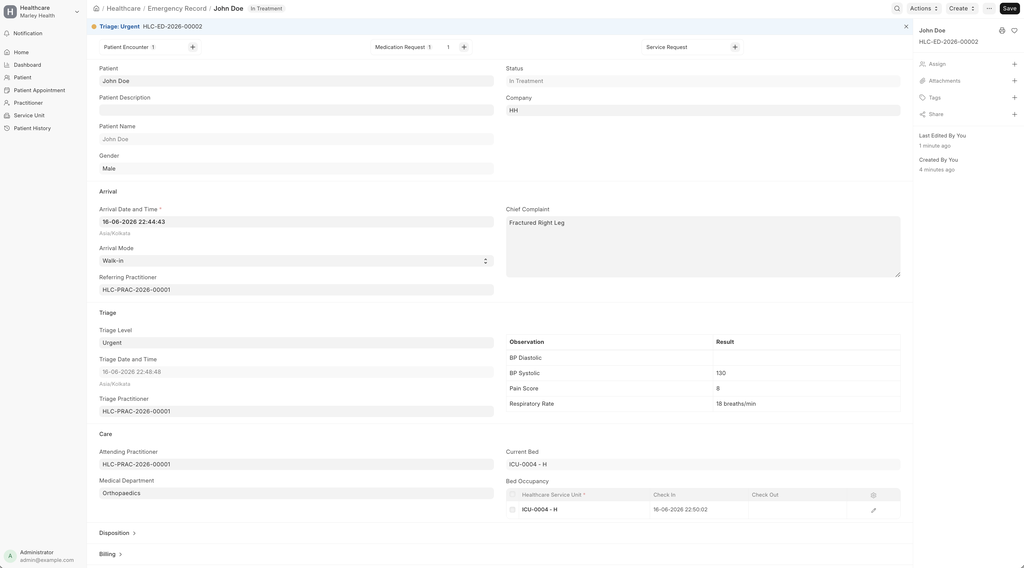
How to Create an Emergency Record
- Go to the Emergency Record list and click on New.
- Select the Patient. The Patient Name, Gender and Age are fetched automatically.
- Set the Arrival Date and Time and the Arrival Mode (Walk-in, Ambulance, Referral or Police).
- Enter the Chief Complaint describing why the patient has come in.
- Save. The record starts in the Registered status.
Note: You can also start an Emergency Record straight from a Patient Appointment or Patient Encounter using Create > Send to Emergency.
Features
Triage
Use Actions > Triage to set the patient's Triage Level. The triage time is recorded and the record moves to the Triaged status. The acuity colour you configure on the Triage Level is shown wherever the patient appears, so the team can prioritise at a glance.
Vital Signs
Use Actions > Record Vitals to capture vital signs. Each vital is stored as an Observation of category Vital Signs linked to the Emergency Record, so it flows into the patient's clinical history.
Bed Management
- Use Actions > Assign Bed and pick a vacant Healthcare Service Unit. The bed is marked Occupied and the record moves to In Treatment.
- To move the patient, use Actions > Transfer Bed — the current bed is released and the new one occupied.
- Each stay is recorded in the Bed Occupancy table with check-in and check-out times.
Note: A Service Unit that is already occupied cannot be assigned to another patient.
Treatment and Orders
- Create > Encounter opens a Patient Encounter for assessment, diagnosis and prescriptions.
- Create > Order opens a Service Request for labs, medication or imaging.
Both are linked back to the Emergency Record, so everything done during the visit is traceable from one place.
Disposition
Use Actions > Disposition to close the visit. Choose one of:
- Discharged — the patient goes home.
- Admitted — an Inpatient Record is created and linked, carrying the patient details and chief complaint.
- Transferred, Left Without Being Seen or Deceased.
On disposition the bed is released and the record moves to Closed.
Billing
You can bill an Emergency visit in two ways.
Consultation fee — set on the Emergency Record under Billing. It defaults from the attending practitioner's consulting charge and can be edited.
Bed occupancy — charged from the Bed Occupancy stays, using the rate and billing hours configured on the Service Unit Type (the same way Inpatient bed charges work).
To raise the invoice, either:
- Use Create > Sales Invoice on the Emergency Record to generate a draft invoice with the consultation and bed lines, then review and submit it, or
- From a Sales Invoice, use Get Items From > Healthcare Services to pull the patient's unbilled Emergency charges along with their other services.
Note: When an Insurance Policy is set on the Emergency Record, use Create > Insurance Coverage to raise coverage for each bed stay. The covered amount is then applied when the occupancy is invoiced.